| TL;DR — Quick SummaryField service businesses lose revenue to missed calls, slow quotes, and manual data entry — not bad work quality.A Fireflies.ai → Zapier → HubSpot workflow auto-creates CRM records from every voicemail without anyone touching a keyboard.Calendly Standard ($10/seat/month, billed annually) with 30–45 min travel buffers stops double-bookings and sends SMS confirmations automatically.HubSpot Starter (starting at $15/seat/month on annual billing, as of 2026) triggers a review request 24 hrs after job close and a maintenance reminder at 6 months.A Google Sheets + Zapier quoting engine generates accurate, branded PDF quotes from the truck in under 3 minutes.Technicians speak post-job notes into the Fireflies.ai mobile app — the summary routes straight into the CRM via Zapier.Roll out one workflow per week over 4 weeks. Do not try to automate everything at once. |
When you run a field service company, your profitability depends entirely on billable hours. Every minute you or your technicians spend typing notes in a truck, manually returning voicemails, or building quotes at a kitchen table late at night is time you are not generating revenue.
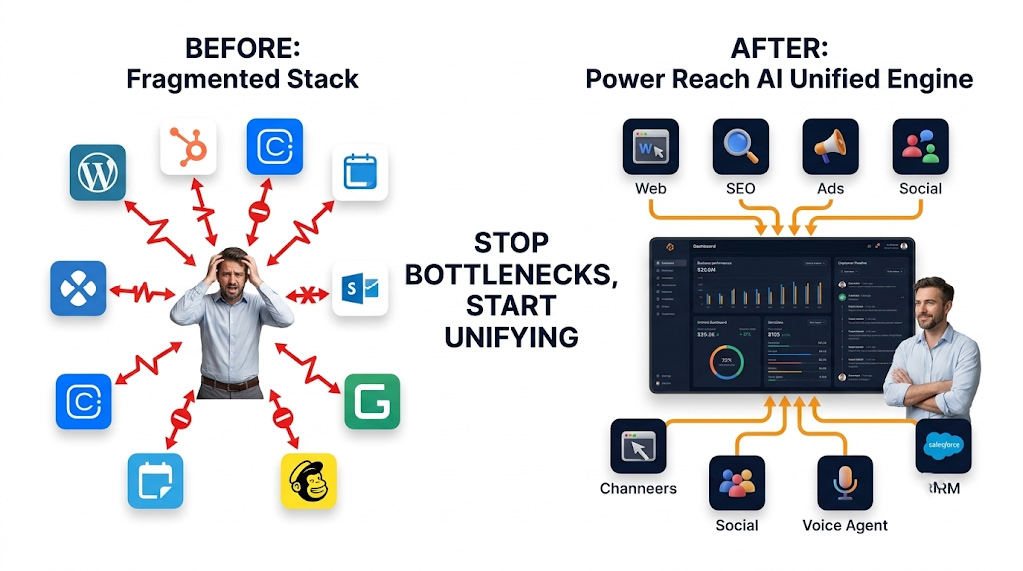
Implementing service business AI is not about adopting flashy technology. It is about building a background system that handles your operations so your team can stay focused on the actual work. You do not need to hire another administrative assistant to handle the busywork. Using established tools like Fireflies.ai, Zapier, HubSpot, and Calendly, you can completely automate the most frustrating parts of your daily operations.
Here is the direct answer to how you fix the operational bottleneck:
- Connect inbound calls to automatic transcription. Route your business voicemail audio to Fireflies.ai. The tool converts every spoken message into structured text within seconds, so no lead detail is ever lost to a scribbled notepad or a forgotten callback.
- Route that transcript text into your CRM via Zapier. A Zapier workflow triggers on each completed Fireflies transcript, extracts the customer name, phone number, and job description, then creates a contact and deal record inside HubSpot automatically.
- Let customers book directly onto your calendar using intelligent buffer times. Calendly Standard syncs to your technicians’ actual Google or Outlook calendars and enforces 30 to 45 minute travel buffers before and after every appointment. Double-bookings stop. Confirmation texts go out automatically.
- Automate post-job follow-up from a deal stage trigger. When HubSpot marks a deal as closed, an automated sequence sends a review request at 24 hours and a seasonal maintenance reminder at 180 days. No email manager required.
- Generate accurate quotes from the cab of the truck. A Google Forms or HubSpot Forms entry on the technician’s phone feeds a Zapier workflow that looks up live material costs from a central Google Sheet, calculates the total including labor, and emails a formatted PDF quote to the homeowner within minutes of the site visit.
This five-step system prevents the administrative pileup that forces you to work weekends. Each step uses tools available today on free or low-cost plans, and none require a developer to build.
Manual Intake Problems Field Service Teams Face
The front desk of a service company is a high pressure environment. If you are a smaller crew, your front desk might just be a cell phone riding in the pocket of your lead technician. This creates massive operational gaps that directly hurt your bottom line.
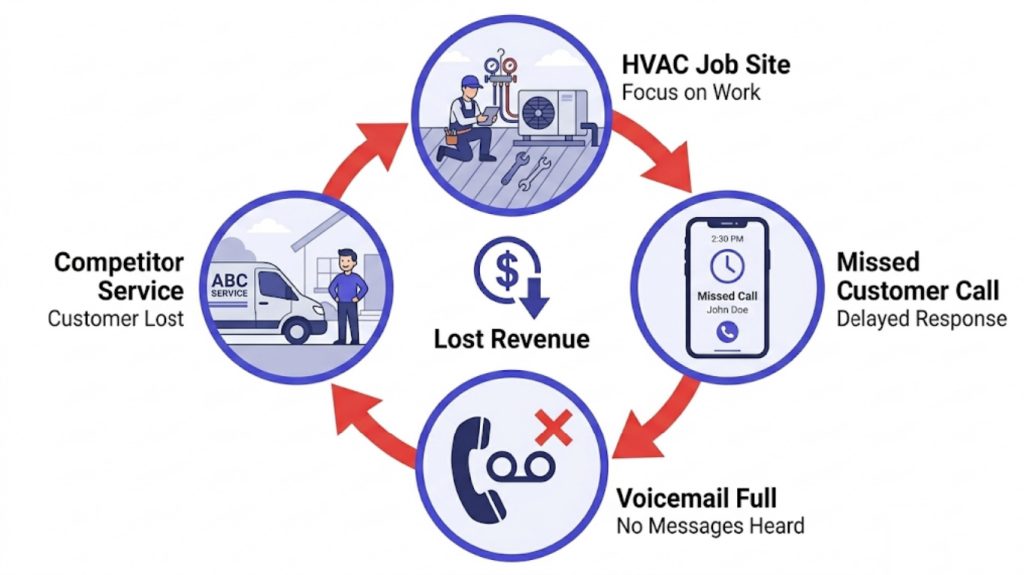
Missed calls during jobs
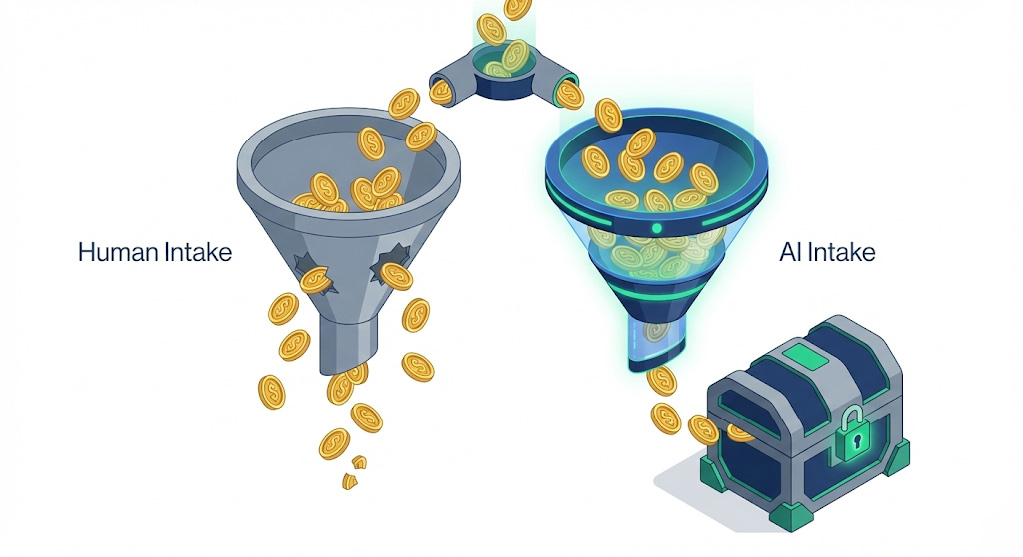
You cannot answer the phone when your hands are full fixing a breaker panel or crawling under a house. The physical reality of field service work guarantees that you will miss inbound calls during your busiest hours. According to Invoca’s Home Services Call Analytics data (2024), 27% of inbound calls to home services businesses go unanswered — meaning more than one in four potential jobs is missed before a conversation starts.
Voicemail to competitor callback
When a customer has a burst pipe or a broken air conditioner in the middle of summer, they do not wait. If your phone goes to voicemail, they hang up and immediately call the next contractor on the list. A missed call is not just a delayed conversation. It is a direct transfer of revenue to your local competitor. The contractor who responds first sets the tone for every conversation that follows.
Manual lead qualification
When you finally do get a customer on the phone, you spend five to ten minutes asking the exact same qualification questions. You need their name, address, the age of their equipment, and a description of the problem. Writing this down on a notepad while sitting in your van leads to lost information and sloppy data entry.
Fireflies.ai Call Transcription to Zapier to HubSpot
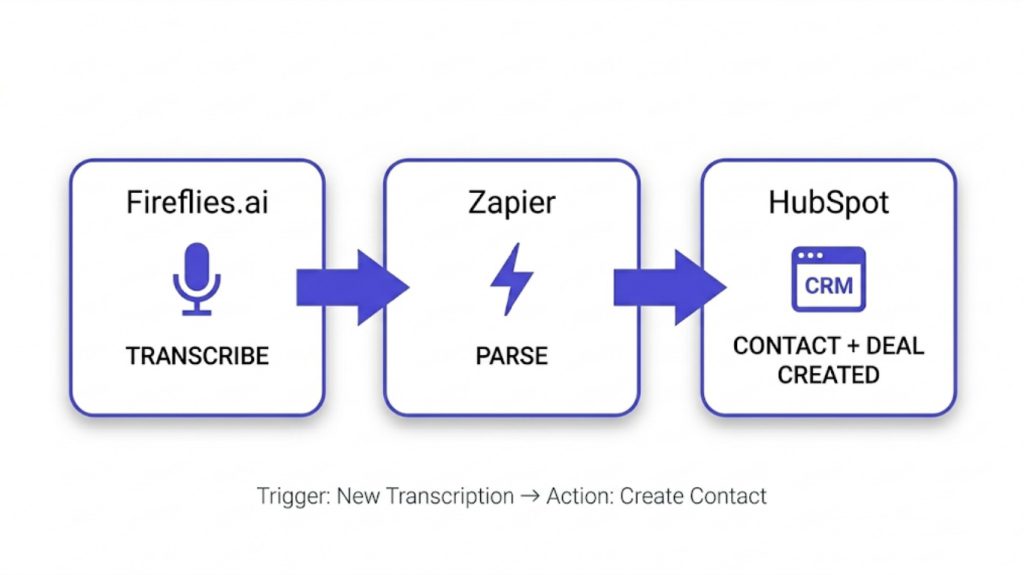
You can eliminate these manual intake problems using a specific service business AI workflow. Fireflies.ai converts audio recordings into structured text automatically, so every voicemail becomes a readable, searchable record that feeds directly into your CRM without manual entry.
| ✓ Verified Zapier trigger names: Use “New Transcription” for full call logs (intake workflow). Use “New Summary” for concise CRM notes (voice-to-CRM workflow). Confirm both against your live Zapier dashboard — trigger names are version-dependent and may update with new Fireflies.ai releases. |
- Set up a smart answering system or VoIP number that captures inbound voicemails clearly.
- Route those audio recordings automatically to Fireflies.ai.
- Open Zapier. Create a new workflow. Set your Trigger to “New Transcription” in the Fireflies.ai integration.
- Add a Formatter by Zapier step to parse the customer name, phone number, and issue from the transcript text.
- Set your Action to “Create Contact” and “Create Deal” in HubSpot. Map the extracted fields to the correct HubSpot properties.
When a customer leaves an urgent message, the AI reads it, pulls out their address and problem, and creates a new ticket in your CRM. You can review the fully typed ticket on your phone and text them back instantly.
HVAC Scheduling AI
If you are wondering about the best AI for HVAC scheduling, the answer lies in separating emergency triage from routine maintenance. HVAC businesses face extreme seasonal volatility. When the first freeze hits, your phone rings constantly with emergency no-heat calls.
AI scheduling tools allow you to prioritize these calls automatically. By routing emergency inquiries to a specific booking link, the tool can override standard routing rules and flag the job for the nearest available technician. For routine maintenance, the tool holds customers to slower calendar days, preventing emergency callers from being blocked out by someone booking a routine filter change.
AI Calendar Tools That Prevent Double-Booking
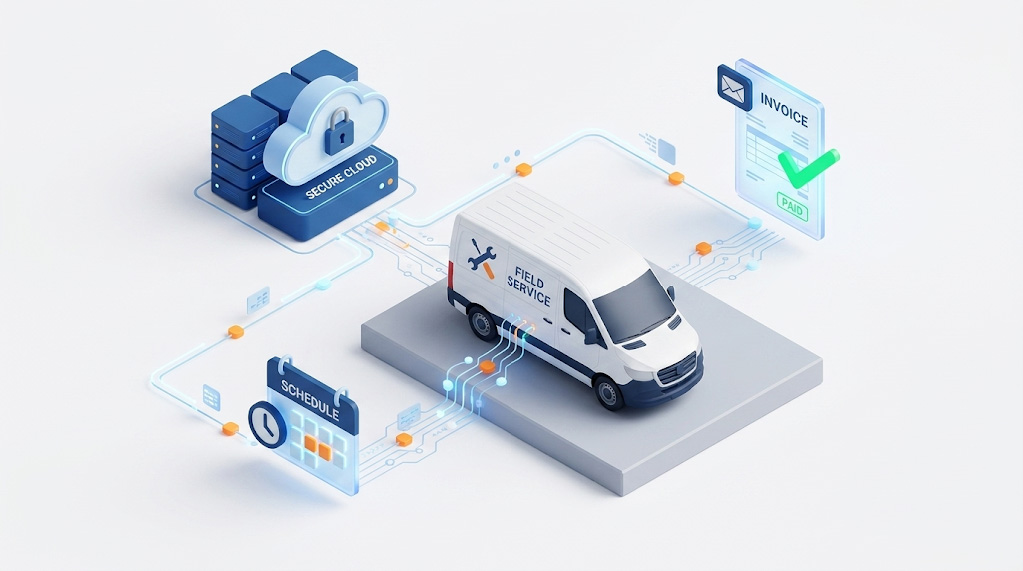
Scheduling field service work is incredibly complex. You are not just booking a thirty minute phone call. You are booking physical travel time, equipment staging, and jobs that might take two hours or six hours. Using a basic digital calendar often results in logistical disasters.
Calendly buffer times
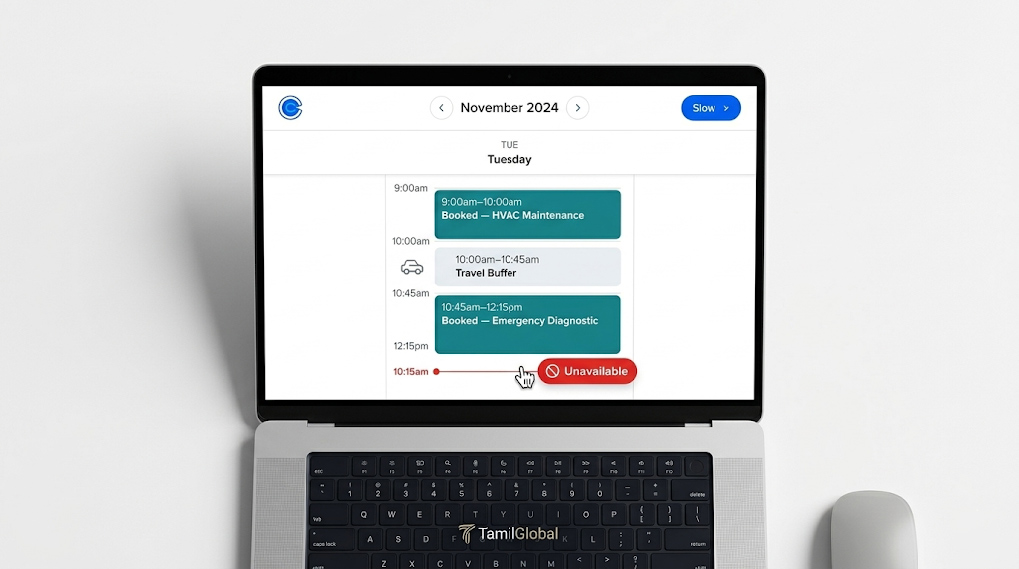
If a customer books at 10:00 AM and the next customer books at 11:00 AM on the other side of town, your technician is going to be late. Calendly buffer times prevent this. When setting up event types in Calendly Standard, you can block out a fixed amount of travel time before and after every job. If you set a 45 minute buffer, the calendar will not allow a customer to book unless enough travel time exists on both sides.
Real tech availability sync
Many service businesses set their availability to a generic 9 AM to 5 PM window. This ignores sick time, doctor appointments, or emergency parts runs. A proper scheduling setup syncs directly with the actual Google Calendar or Outlook calendar on your technician’s phone. If your tech blocks out two hours for a dental appointment, the public booking page instantly removes that slot.
SMS confirmation workflows
No-shows are incredibly expensive. Sending a truck across town only to find out the homeowner forgot you were coming burns fuel and wastes hourly wages. You need an automated system to force confirmations.
Step-by-Step Workflow: Calendly Standard Scheduling for Service Teams
- Create a Calendly Standard account ($10/seat/month, billed annually) for your dispatch manager or lead technician.
- Build distinct Event Types for your services. Create one for Routine Maintenance (60 minutes) and one for Emergency Diagnostic (120 minutes).
- Open Scheduling Settings for each event. Scroll to Buffer Time and input 30 to 45 minutes for both Before and After the event.
- Navigate to the Communications tab within the event settings.
- Turn on Text Message Reminders. Set the system to automatically text the customer 24 hours before the job, and again 2 hours before. Important: Ensure your SMS provider has active 10-DLC (10-Digit Long Code) registration before enabling automated texts. As of 2026, unregistered automated SMS campaigns are blocked by US carriers — this is a legal compliance requirement, not optional.
- Include a link in the text allowing the customer to cancel or reschedule if their plans changed.
This prevents your technicians from arriving at empty houses and removes the need for an office manager to spend two hours every afternoon making confirmation calls for the next day.
Automated Follow-Ups Without Email Managers
The easiest money you will ever make in a service business is from a past customer. However, most field service teams are terrible at follow-up. When the job is done and the invoice is paid, the customer is forgotten. Hiring an email marketing manager to send newsletters is too expensive for a small crew. You need automated sequences instead.
Post-job review requests
Local search rankings depend heavily on steady, positive Google reviews. You cannot rely on technicians to remember to ask for a review as they are walking out the door. You need a system that asks for you, exactly 24 hours after the job is completed.
Maintenance reminders
If you install a new HVAC system, that system needs an inspection every spring and fall. If you clear a major plumbing blockage, that drain needs preventative treatment annually. Automation sets long-term timers so you never miss a seasonal maintenance booking.
Upsell sequences
When you complete a basic repair, it is often the perfect time to pitch a larger upgrade or a yearly membership plan. Doing this manually feels pushy. Automating it removes the emotion and presents the logical next step to the homeowner.
Step-by-Step Workflow: HubSpot + Zapier Follow-Up Automation
| ⚠️ Capability note: HubSpot Starter (starting at $15/seat/month on annual billing, as of 2026) supports single-step, deal-stage triggered automation, meaning one email sent immediately or after a single delay. It does not support multi-step sequences with two or more time delays. To run both the 24-hour review request and the 180-day maintenance reminder inside HubSpot alone, you would need HubSpot Professional (significantly higher cost). The workflow below uses HubSpot Starter for the review request and Zapier to handle the 6-month reminder, keeping costs at the entry-level tier. |
- Open HubSpot and navigate to Automations.
- Create a new workflow triggered by a Deal Stage change. Set the trigger to activate when a deal moves to Closed Won or Job Complete.
- Add a Delay step. Set the delay for 1 day (24 hours).
- Add a Send Email action. Use a plain-text template thanking the customer and providing a direct link to your Google Business Profile to leave a review. This is the full extent of HubSpot Starter’s time-delayed automation for this trigger.
- In Zapier, create a separate workflow triggered by the same Deal Stage change in HubSpot.
- Add a Delay step in Zapier set for 180 days.
- Add a Create Task action in HubSpot. Zapier creates a task assigned to your service manager with a due date exactly 180 days out, subject line: “Send seasonal maintenance reminder to [Customer Name], link to Calendly booking page.”
- Your service manager receives the task in their HubSpot queue six months later and sends the reminder manually or with one click from the templated email draft.
This keeps your subscription cost at the Starter tier while ensuring no customer falls off your follow-up radar at the six-month mark.
Quoting Workflows That Update Automatically
Quoting is a massive bottleneck. A technician evaluates a job, writes down parts, drives back, checks supplier prices, builds a document, and emails it. This process can take days. The contractor who sends a clear, accurate quote first creates the strongest impression with the homeowner. Furthermore, if your material costs change between the site visit and the quote, your profit margin vanishes.
Google Sheets + Zapier
You can build a dynamic quoting engine using tools you already have. You do not need expensive estimating software. You just need a central database of your costs.
Material cost sync
You maintain one spreadsheet listing your base materials, standard equipment models, and current supplier prices. When your supplier raises the cost of copper pipe or refrigerant, you update the number in this one sheet. Your entire quoting system updates instantly.
Quote to contract automation
Once the math is done, the system generates the paperwork and sends it to the client for a digital signature.
Step-by-Step Workflow: Automated Quoting System
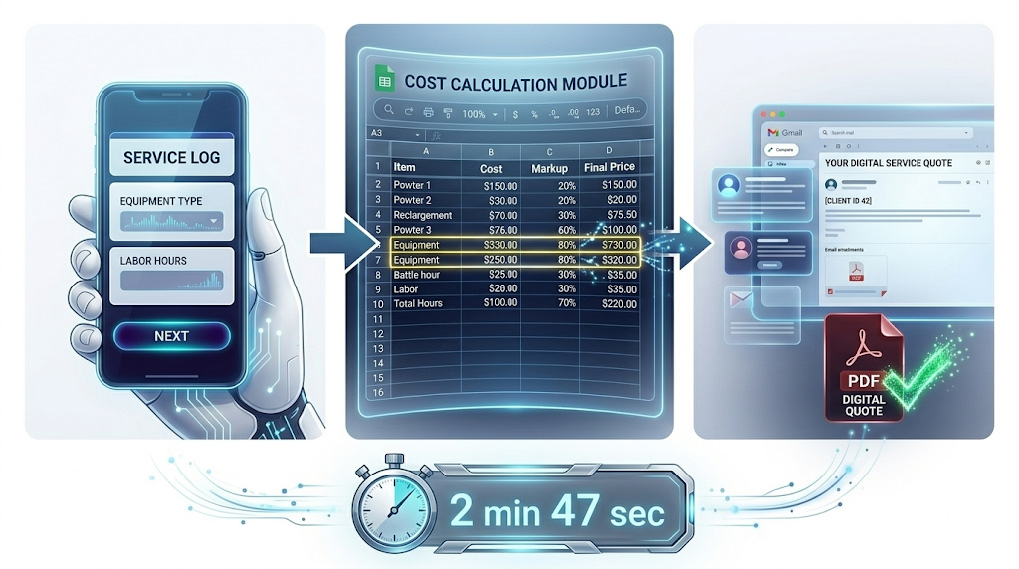
- Open Google Sheets. Create a Master Price List. Column A is Item Name, Column B is your Cost, Column C is your Markup Percentage, and Column D is the Final Price to the customer.
- Create a form for technicians to open on their phones at the job site — use Google Forms or HubSpot Forms. HubSpot Forms are preferred if you are tracking lead attribution in 2026, as they write cookie and contact data directly into HubSpot without a Zapier step. Include dropdown menus for required equipment and a field to enter estimated labor hours.
- Open Zapier. If using Google Forms, set the trigger to New Form Response. If using HubSpot Forms, use the HubSpot New Form Submission trigger — this eliminates one Zapier step since contact data is already in your CRM.
- Add a Lookup Spreadsheet Row action. Configure Zapier to search your Master Price List and pull the Final Price for today.
- Add a Formatter by Zapier math step to multiply labor hours by your standard hourly rate and add it to the equipment cost.
- Add a final action using Google Docs or DocuSign. Zapier pushes the calculated numbers into a quote template, saves it as a PDF, and emails it to the homeowner automatically.
This prevents underbidding a job because you used an outdated price book. It also allows your technicians to generate a branded quote from the cab of their truck in three minutes.
Plumbing CRM Automation
If you are looking to automate plumbing follow-ups and data entry, you understand a specific pain point. Plumbers often have wet, dirty, or gloved hands. Asking a plumber to navigate a complex CRM interface while standing in a flooded basement is completely unrealistic.
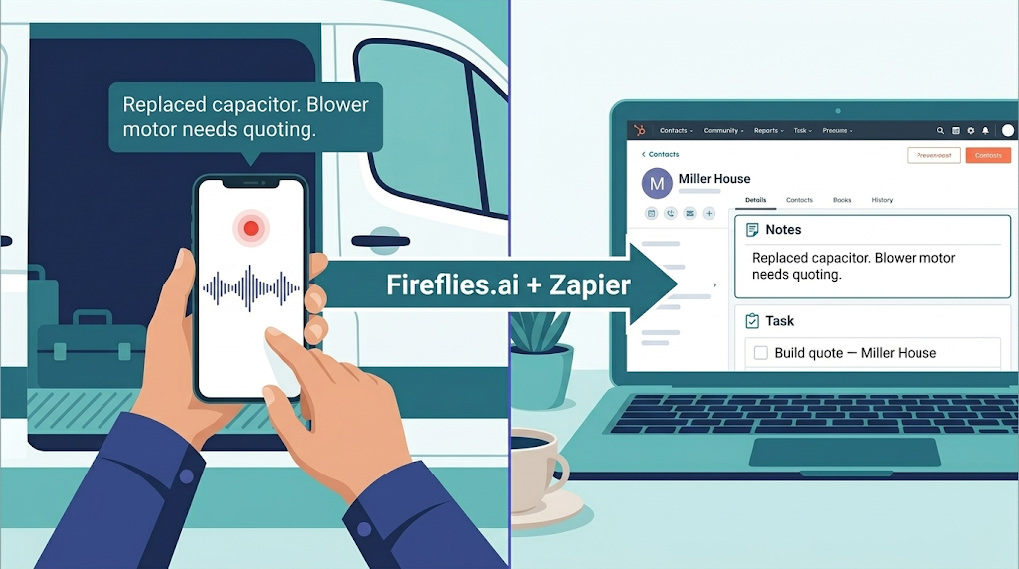
Plumbing CRM automation relies heavily on voice-to-text inputs. Fireflies.ai’s mobile app allows field technicians to record a spoken debrief after each job. The app transcribes the audio and the summary routes into your CRM via Zapier. Plumbers speak their notes, keep their gloves on, and your CRM stays current.
CRM Updates Without Double Data Entry
Time spent driving between jobs is unavoidable. Time spent sitting in the truck typing job notes on a tiny phone keyboard is completely avoidable. When technicians type notes manually, they abbreviate critical details, forget equipment model numbers, or skip the entry entirely. Bad CRM data means your business operates blindly.
Job complete to auto-CRM
Voice-to-text technology allows technicians to speak naturally while Fireflies.ai handles the transcription. The Zapier workflow then structures that text and pushes it into the correct customer record in HubSpot or Salesforce.
Photo documentation via HubSpot attachments
Technicians take photos of broken panels or leaking pipes, but those photos typically sit on personal camera rolls. Using HubSpot’s mobile app, technicians can upload photos directly to the customer record from the job site. Set a team policy to attach a minimum of two photos per job closure. This keeps your service history complete and protects you in any billing dispute.
Customer feedback scoring via HubSpot surveys
HubSpot’s Customer Feedback tool sends a one-question NPS survey after job completion. The score attaches directly to the contact record. Any response below a 7 out of 10 triggers an internal task assigned to your service manager to follow up within 24 hours before a negative review is posted publicly.
Step-by-Step Workflow: Voice-to-CRM Automation
- Ensure your field technicians have the Fireflies.ai mobile app installed on their phones.
- After completing a job and returning to the truck, the technician presses record and speaks their debrief aloud. For example: “Finished the repair at the Miller house. Replaced the faulty capacitor. The blower motor is showing heavy wear. We need to quote them for a full replacement before winter.”
- Fireflies transcribes the audio in seconds and generates a summary.
- In Zapier, create a workflow triggered by New Summary in Fireflies.ai.
- Add an action to push the transcribed text into the Notes section of the matching customer record in HubSpot.
- Add a Zapier Filter step to scan the text for the word “quote.” If found, Zapier creates a Task assigned to your sales manager: “Build replacement quote for Miller house.”
Your technicians never type a paragraph again, but your CRM remains perfectly updated with every technical detail and future sales opportunity.
Weekly Time Audit Template
Before you start connecting tools and building workflows, you need to know exactly where your operations are bleeding time. You cannot fix a process if you do not measure it first.
Use this Weekly Time Audit to track your manual hours for one full week. Identify the row with the highest number — that is your priority target. Do not try to fix all five rows at the same time.
| Operational Task | Current Manual Process | Avg Hrs/Week | AI Automation Solution | Tools |
|---|---|---|---|---|
| Inbound Intake | Stopping jobs to answer calls, returning voicemails | 4–6 hrs | Fireflies.ai transcription + Zapier CRM routing | Fireflies.ai + Zapier + HubSpot |
| Scheduling | Texting dates back and forth, fixing double-bookings | 3–5 hrs | Calendly Standard with travel buffer times | Calendly Standard ($10/seat/mo, annual) |
| Follow-Up Emails | Manually typing check-ins and review requests | 2–4 hrs | HubSpot Starter automated sequences | HubSpot Starter ($15/seat/mo, annual) |
| Quoting | Looking up material prices, formatting PDFs manually | 3–5 hrs | Google Sheets dynamic pricing + Zapier | Google Sheets + Zapier (paid plan) |
| CRM Data Entry | Typing job notes from the truck keyboard | 2–3 hrs | Fireflies.ai voice-to-text dictation + Zapier | Fireflies.ai mobile app + Zapier |
4-Week Implementation Timeline
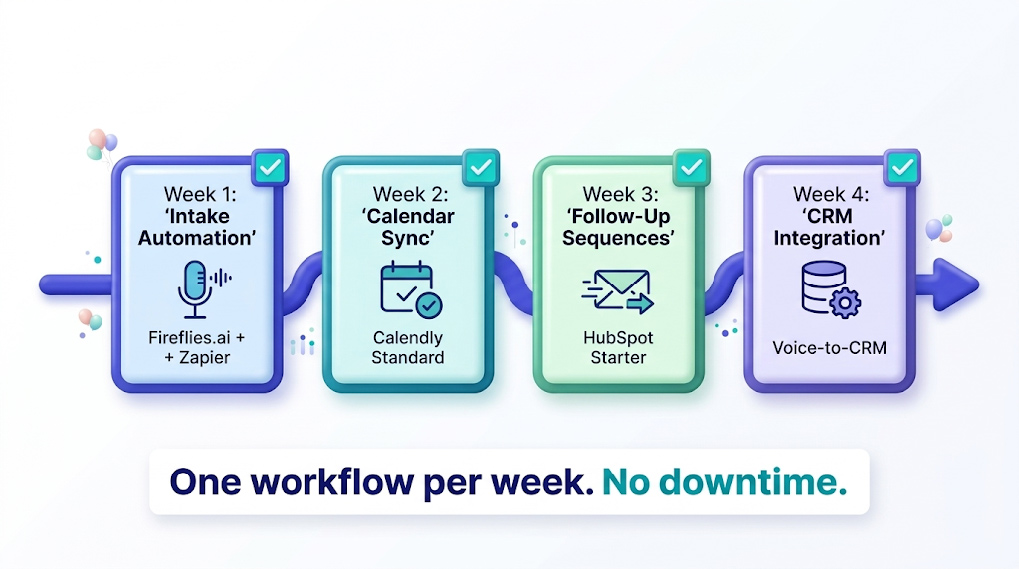
Trying to overhaul your entire business operation in a single weekend will break your processes and frustrate your technicians. Deploy automation in phases. Use this 4-week rollout plan to modernize your operations without causing downtime.
Week 1: Intake automation. Goal: Stop losing inbound leads to voicemail. Set up Fireflies.ai, route your voicemail audio to it for transcription, build the Zapier workflow connecting Fireflies to your CRM, and test by leaving yourself a fake voicemail to confirm the full loop works.
Week 2: Calendar sync. Goal: Eliminate scheduling back-and-forth and double-booking. Upgrade to Calendly Standard ($10/seat/month, billed annually), sync your technicians’ actual Google or Outlook calendars, create event types with 30-minute travel buffer times on both sides, and activate 24-hour and 2-hour automated SMS reminders.
Week 3: Follow-up sequences. Goal: Generate reviews and seasonal recurring revenue automatically. Open HubSpot Starter, draft a plain-text review request email, set a trigger to send it 24 hours after a job closes, and draft a 6-month seasonal checkup email linking to your Calendly booking page.
Week 4: CRM integration. Goal: Stop manual data entry from the field. Train technicians to record a voice debrief after each job using the Fireflies.ai mobile app. Set up Zapier to route voice summaries into the correct CRM client file and configure automatic task generation for any upsell opportunities mentioned in the notes.
Free Tier Limitations and Realistic Expectations
These tools are not entirely free at professional volume. Be prepared for the reality of software pricing tiers.
HubSpot automation limits. The free tier handles basic contact storage but does not support deal-stage triggered email sequences. You will need HubSpot Starter starting at $15/seat/month (annual billing, as of 2026) to run the workflows described in this guide. Monthly billing is available at $20/seat/month.
Zapier task caps. The free tier restricts you to two-step Zaps (one trigger, one action) and 100 tasks per month. The quoting system in this guide is multi-step and requires a paid plan. In 2026, the Professional plan starts at $19.99/month for 750 tasks. High-volume service businesses running five or more active workflows should audit their expected monthly task volume against Zapier’s current tier pricing before committing – a five-step Zap (one trigger and four actions) consumes four tasks each time it runs. Zapier does not charge a task for the trigger itself, only for successful actions.
Calendly Standard requirements. The free version of Calendly limits you to one event type. To build a proper dispatch system with multiple service durations, travel buffer times, and SMS reminders, you must upgrade to Calendly Standard ($10/seat/month, billed annually, or $12/seat/month on monthly billing).
Treat these subscriptions as operational infrastructure, not optional software expenses.
Frequently Asked Questions
Can AI for HVAC scheduling handle emergency calls versus routine maintenance?
Yes. Create distinct event types in Calendly. Routine maintenance events are restricted to show availability three days out. Emergency diagnostic events show same-day availability and bypass certain buffer restrictions, ensuring urgent revenue is captured immediately without blocking your technician’s existing schedule.
Will automating plumbing follow-ups annoy my customers?
No, if you configure the delays correctly. Customers appreciate a single text asking for a review 24 hours after a fix and a reminder to winterize their pipes before the first freeze. Keep every automated message strictly operational and relevant to their equipment.
Do I need to hire a developer to set up Salesforce integrations?
No. Zapier provides visual drag-and-drop interfaces that replace developers for standard workflows. If you can use Excel and navigate a basic CRM, you can build these connections yourself using pre-built integrations without writing any code.
What happens if the voice transcription misunderstands my technician?
Fireflies.ai automatically attaches the original audio file to the CRM record alongside the text. If a note reads poorly, the office manager clicks play to hear exactly what the technician said. Have technicians record their debrief from inside the truck after the job, not on the job site, to reduce background noise errors.
Will my older customers refuse to use an automated booking calendar?
Some might prefer a phone call. The goal is to let customers who want to book themselves do so without consuming your time, freeing your phone lines for the customers who prefer to speak to a human.
How do I handle pricing updates on automated quotes?
By using a central Google Sheet as your master price book, you only ever update prices in one place. Zapier always pulls data from that sheet in real-time, so every quote generated after a price change reflects the new margin automatically.
Does using AI mean I have to fire my office manager?
No. Automation moves your office manager away from low-value data entry toward high-value tasks like managing customer disputes, negotiating with suppliers, and closing quotes in the pipeline.
Is my customer data safe passing through Zapier and AI tools?
Yes. Zapier, HubSpot, Fireflies.ai, and Calendly all adhere to strict data compliance and security standards. Use secure passwords, enable two-factor authentication on all accounts, and regularly audit which team members have access to your databases.
| Ready to start?Download the Time Audit Template. Pick your number one time drain. Start there. |